To start using the new signature all you have to do is follow three easy steps:
- Copy the content of the e-mail signature below and paste it on a fresh mail. Now you can change your details as per your profile.
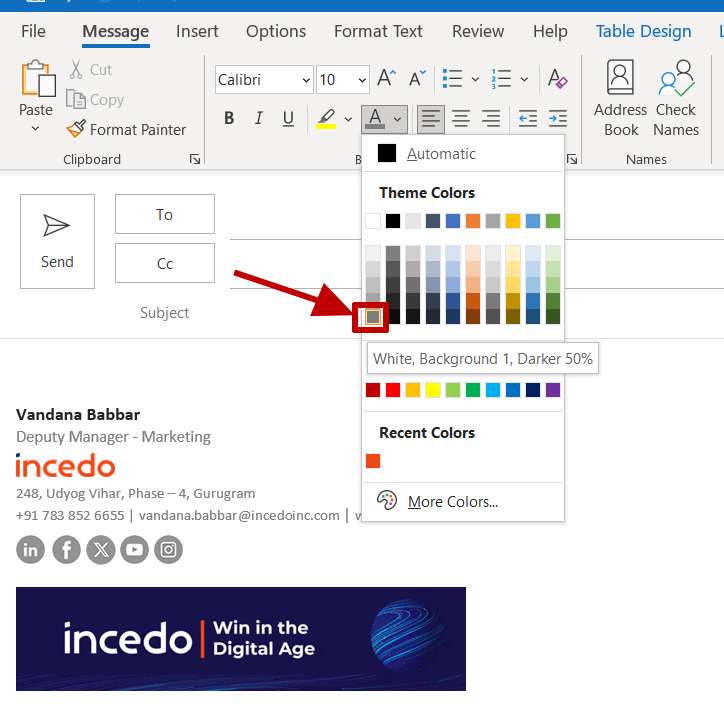
Note: In case your new e-mail signature gets altered in terms of either colour or the font size, edit it as following –
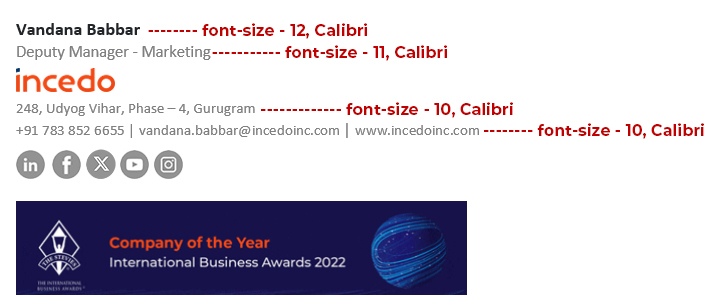
Font size - Please refer to the below for the correct font size.
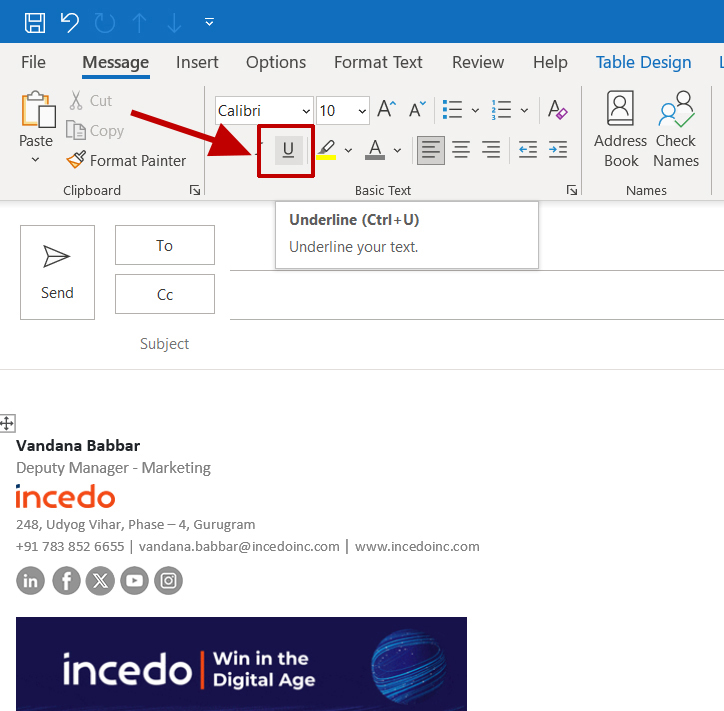
Also, in case you see an underline in your signature, select that part and double click on “U” to remove it as per the branding guidelines.
- Copy the new e-mail signature that you created and then select signature option from the toolbar above and click on “Signatures option”. Paste the new signature on the dialog box and click “OK”.
Note: Usage of the Signature and Conformity to the Color of text, Font face, Font size and Font style is mandatory as per the Incedo branding guidelines. Please use the signature template given at the bottom of the mail without any change in size or distortion in the Incedo logo.
For additional help, Click here
Copy below email signature template
Follow the below steps to change Zoom background:
- Download and save the Zoom background from the e-mail attachment or from the link provided.
- Double click on the Zoom app on your desktop and sign in using your credentials.
- Click your profile picture, then click Settings.
- Select Backgrounds & Filters
- Click on the “+” icon to select the WITDA virtual background.
Note : Make sure that “mirror my video option is unchecked” at the bottom.
Click here to download WITDA Zoom background
For additional help, Click here
To customize your LinkedIn cover image all you have to do is follow the below steps:
- Tap the Profile icon.
- Tap the background photo section > Tap CHANGE from the Add Background Photo page.
- Follow the prompts to take a new photo or upload one.
- Change the position and size by dragging the photo.
- Tap SAVE on the upper right corner.
Click here to download LinkedIn cover image
For additional help, Click here
Let's make our brand purpose – “Win in the Digital Age” trend on social media and stand a chance to win Incedo branded goodies.
Follow these simple steps:
- Click here to download the PPT.
- Open the PPT and right-click on the image and then select ‘send to back’. The default image will pop up.
- Right-click on the default image that has come up, then right-click again to select your picture from the device gallery.
- After you have uploaded your image from the gallery, click on ‘send to back’.
- You can now save the file in the preferred format (JPEG, PNG, etc.).
- Publish it on your LinkedIn account with the post text as - I’m an Incedoer, I’m winning in the digital age! #incedo #wininthedigitalage
- Use the hashtags #incedo and #wininthedigitalage in your post. Posts with both hashtags will only be considered.
Note: Usage of the Image is Mandatory as per the INCEDO Branding guidelines. Please use and edit the template attached at the top of the mail without any change in size or distortion in the INCEDO logo.